 Feeds
Feeds
Reference
Settings
Every setting, by tab.
Press ⌘, to open Settings. Every tab is also reachable from the action bar.
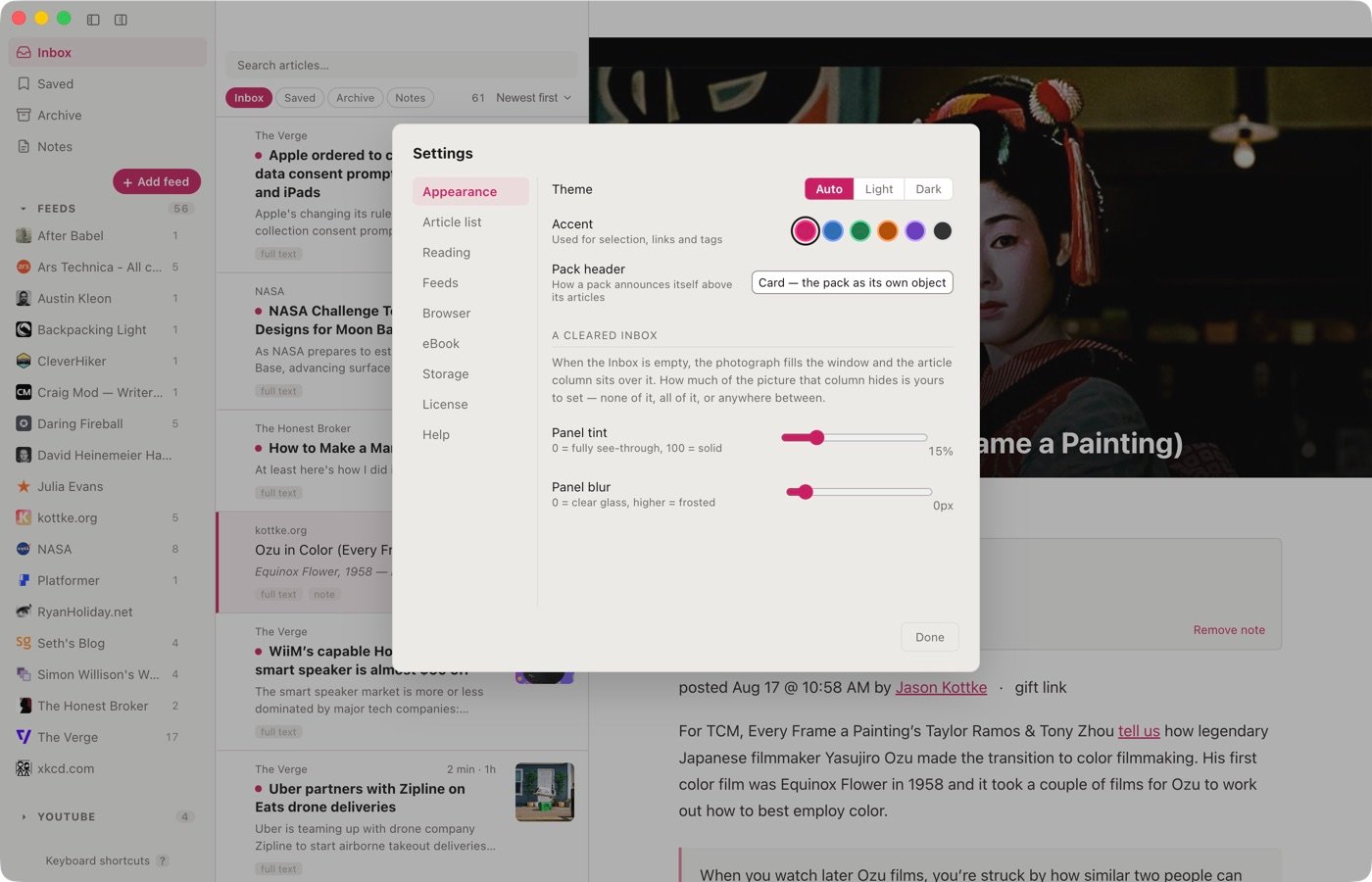
Appearance
- Theme — Auto, Light or Dark. Auto follows the system.
- Accent — used for selection, links and tags.
- Pack header — how a pack is shown above its articles: a card, or a compact single line.
- A cleared Inbox — when the Inbox is empty the photograph fills the window and the article column sits over it. Panel tint sets how much of the picture that column hides, from fully see-through to solid; Panel blur sets how frosted it is, from clear glass upward.
Article list
- Title weight and title size.
- Card spacing — compact, cozy or roomy.
- Collapse duplicates — one row when the same story arrives from several feeds.
- Show excerpt, and when it’s on, its weight, size, and how many lines before it truncates.
- Show featured images, and an optional color overlay — off, a single color, random per item, or rainbow.
Reading
- Reading text size, reading font (sans, serif or mono), and reading width.
- Default sort — newest first, oldest first, shortest read, longest read, or title A–Z.
- Show reading time. Time is measured while you are using Feeds, not estimated from word count — the clock stops when the window loses focus, when the Mac sleeps, and after ninety seconds without input.
- Show today’s time — a line at the foot of the sidebar. Off by default; the clock runs either way, so switching it on later finds the time already counted.
- Words per minute — 160, 220 or 280, used for the estimated length shown against an article you haven’t opened.
- Mark read when opened.
- Load remote images — off keeps newsletters from knowing you opened them. It also stops embedded players loading, and turns each one back into a link.
- Subscriber-only posts — some newsletters send every post to everyone, and the ones you haven’t paid for arrive as a headline and a subscribe button. Choose whether those are archived quietly or left in the Inbox. Either way they are recognized and marked paid, and they stay in their feed and in search.
- Paid subscriptions — for the newsletters you do pay for. Sign in to the publisher in a window of its own, then tick the publications you subscribe to, and their posts are fetched with your session and arrive whole. Ticking one also re-opens the posts already in your library so they are fetched again. Free posts are unaffected: a session is only tried after a post turns out to be a subscribe wall. Sign out everywhere clears every publisher cookie. Each publication carries its own Sign in… button, pointed at its own address, so a newsletter on its own domain keeps your session there. See Privacy for what is sent.
Feeds
Words per minute and Show today’s time live under Reading.
- Check for new articles — every 5, 15, 30 or 60 minutes, or never (manual only).
- Look up missing site icons — sends the site’s address to DuckDuckGo when a site provides no icon of its own. Turning it off costs only the icon.
- Sources — Reddit, and open social (Mastodon and Bluesky), can be switched off. YouTube and Substack are always on. Any RSS or Atom feed works regardless; these only add a heading and smarter address handling.
Browser
Sets up the Feeds button for Chrome, Brave, Edge or Arc. See The Feeds button for your browser.
eBook
How articles are packaged when exported to EPUB.
- Export folder — chosen once, changeable here.
- Optimize for — e-ink, e-reader, sharper, small, or custom.
- Custom exposes max image size (longest edge, 600–2000 px) and image quality (55–95%).
- Include images — off makes text-only books that sync fast.
Storage
Only the archive expires. Saved articles, tagged articles and anything still in the inbox are kept as long as you keep them.
- Keep archived articles — 30, 90, 180 or 365 days, or forever (until the ceiling).
- The panel shows the database size against its ceiling. At the ceiling the oldest archived articles go first, whatever the setting says.
License
Trial status, and activating or deactivating this Mac. See Trial and license.
Help
The support address, and What’s new, which opens the Changelog for every release, newest first.
Keyboard shortcuts
Every key Feeds listens for.
Press ? in the app for this list.
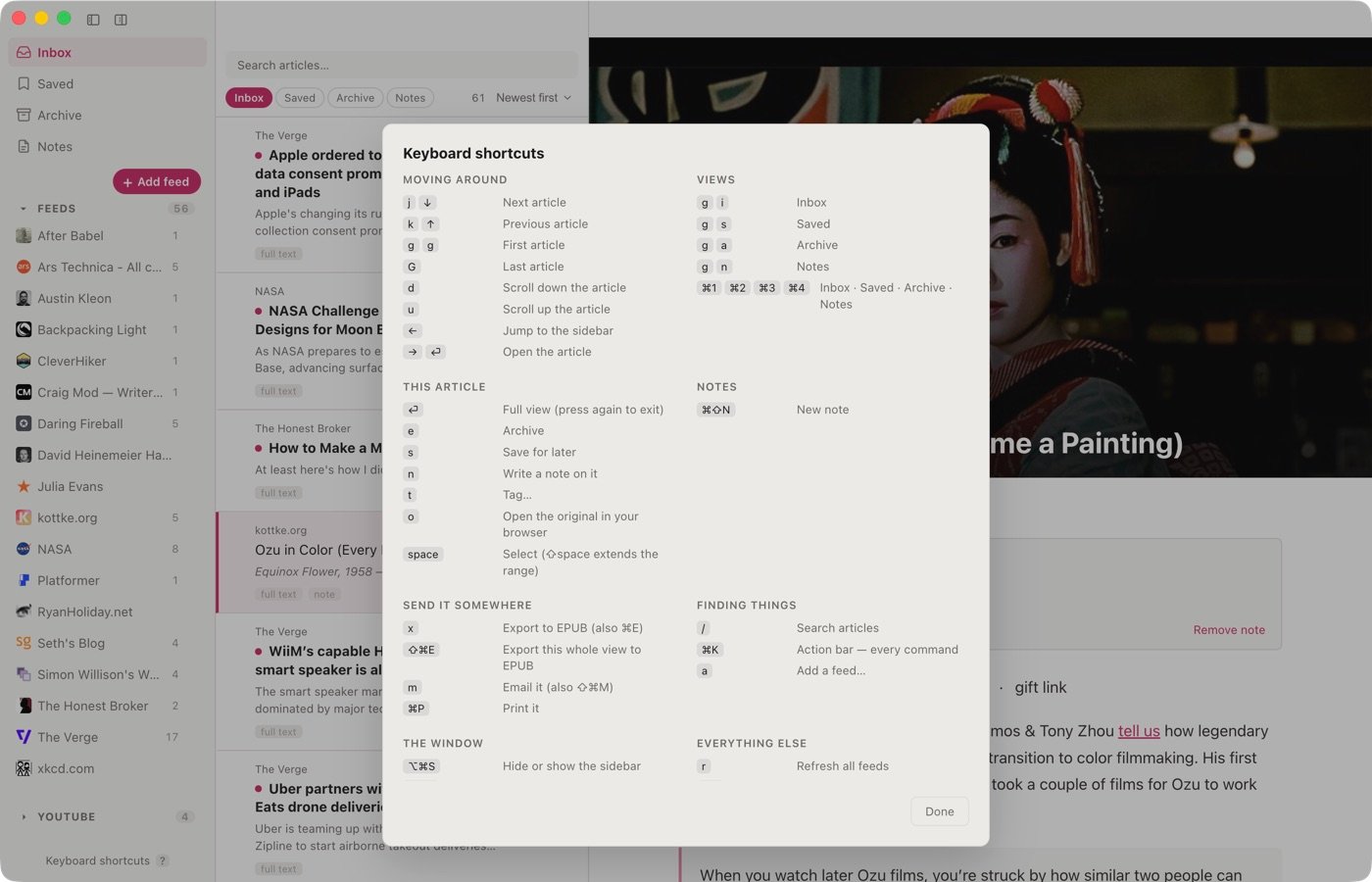
Moving around
| Key | Action |
|---|---|
j ↓ | Next article |
k ↑ | Previous article |
g g | First article |
G | Last article |
d | Scroll down the article |
u | Scroll up the article |
← | Jump to the sidebar |
→ ⏎ | Open the article |
Views
| Key | Action |
|---|---|
g i | Inbox |
g s | Saved |
g a | Archive |
g n | Notes |
⌘1 ⌘2 ⌘3 ⌘4 | Inbox · Saved · Archive · Notes |
This article
| Key | Action |
|---|---|
⏎ | Full view (press again to exit) |
e | Archive |
s | Save for later |
n | Write a note on it |
t | Tag… |
o | Open the original in your browser |
space | Select (⇧space extends the range) |
Notes
| Key | Action |
|---|---|
⌘⇧N | New note |
n | Note on the open article |
g n | Everything you have noted |
Send it somewhere
| Key | Action |
|---|---|
x | Export to EPUB (also ⌘E) |
⇧⌘E | Export this whole view to EPUB |
m ⇧⌘M | Email it |
⌘P | Print it |
Finding things
| Key | Action |
|---|---|
/ | Search articles |
⌘K | Action bar — every command |
a | Add a feed… |
The window
| Key | Action |
|---|---|
⌥⌘S | Hide or show the sidebar |
⌥⌘L | Hide or show the article list |
Everything else
| Key | Action |
|---|---|
r | Refresh all feeds |
⌘Z | Undo the last action |
⌘, | Settings |
? | This list |
esc | Close, or leave full view |
Reading stats
What you got through, and how long it took.
Open it with ⌘K → Reading stats, or Help → Reading Stats.
There is no badge, no daily target and no streak anywhere in Feeds.
The table
Five spans — today, the last seven days, the last thirty, this year, and all time — against six columns.
| Column | What it counts |
|---|---|
| Read | Articles you opened in full view or scrolled. Counted once, so re-reading doesn’t double it. |
| Cleared | Everything archived, whether you read it or not. |
| Saved | Articles put on the Saved shelf. |
| Notes | Notes written — both kinds, on an article and on their own. |
| Words | Words in the articles counted as read. |
| Time | Measured time with an article open. See below. |
Read and Cleared are deliberately separate: archiving something without opening it isn’t reading.
Your own notes don’t count as reading, so they stay out of Read, Words and Time. They are counted in Notes. Articles you saved from the web do count as read.
How time is measured
The clock runs while Feeds is in front of you and you are using it. It stops when the window loses focus, when the Mac sleeps, and after ninety seconds without any input.
Measuring began in 1.14.2, so Time covers less history than the other columns — the screen prints the date it started. Spans from before then show a dash rather than a zero.
What is stored is one total per day, on your Mac, and nothing else. See Privacy.
Showing today’s time
Settings → Reading → Show today’s time puts a line at the foot of the sidebar. Off by default; the clock runs either way, so turning it on later finds the time already counted.
The rest
Under the table: your most-read sources, your busiest day, your average article length, and the date your history starts.
Updates
How Feeds checks for and installs a new version.
Feeds checks for updates every hour and installs them when you quit or restart.
To update now, choose Install Update Now from the Feeds menu, or the action bar. It installs a waiting update — named by version once it’s downloaded — or checks for one and tells you if there isn’t one.
After an update, a short note appears above the article list naming the new version and linking to its release notes. It shows once, and can be dismissed.
If Feeds stops being able to check, it says so.
Update checks carry no identifier for your copy of Feeds. See the Changelog for what each version changed — it is also in the app, under Help → What’s New (Changelog), and in Settings → Help.
Getting started Reading Organizing Sharing Reference Account
The help docs and changelog content is AI-written.