 Feeds
Feeds
Getting started
What Feeds is
An internet reader for macOS.
Subscribe to what you want to read, and read it without an algorithm deciding the order.
There is no account, no server and no subscription. Every article, setting and subscription lives on your Mac. Nothing is uploaded, and Feeds works offline once articles have been fetched.
It reads RSS and Atom, which covers most of the web that publishes — blogs, news sites, Substack, YouTube, Reddit, Mastodon and Bluesky included.
Feeds is $29, once, with a 30-day trial. Made by Brooding Jay.
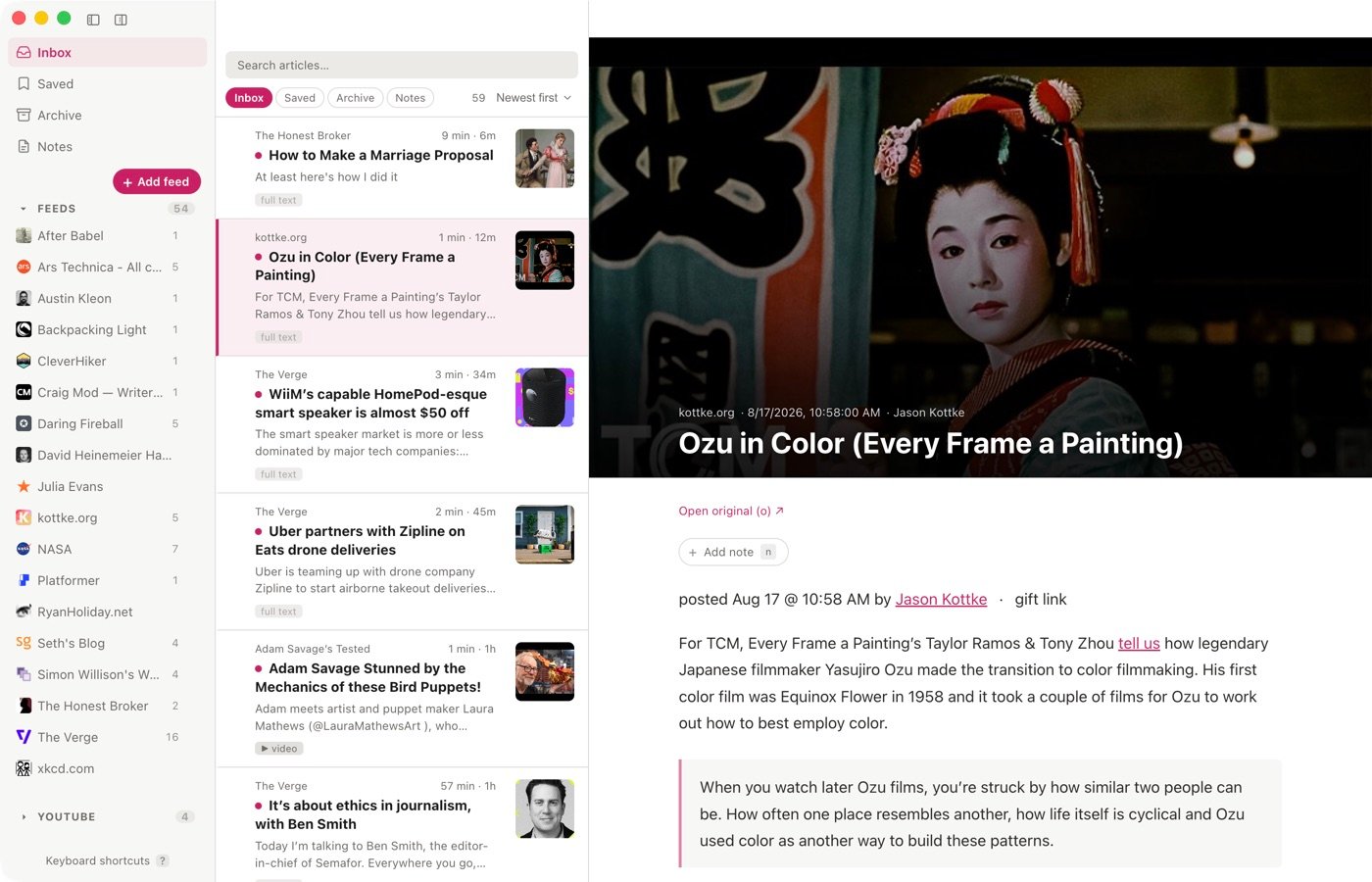
Adding a feed
Subscribe by pasting a site address.
You don’t need the feed’s own address. Paste the site’s, and Feeds finds the feed.
Step by step
1. Open the Add screen. Press a, click Add feed above the feed list, or choose Add feed… in the action bar.
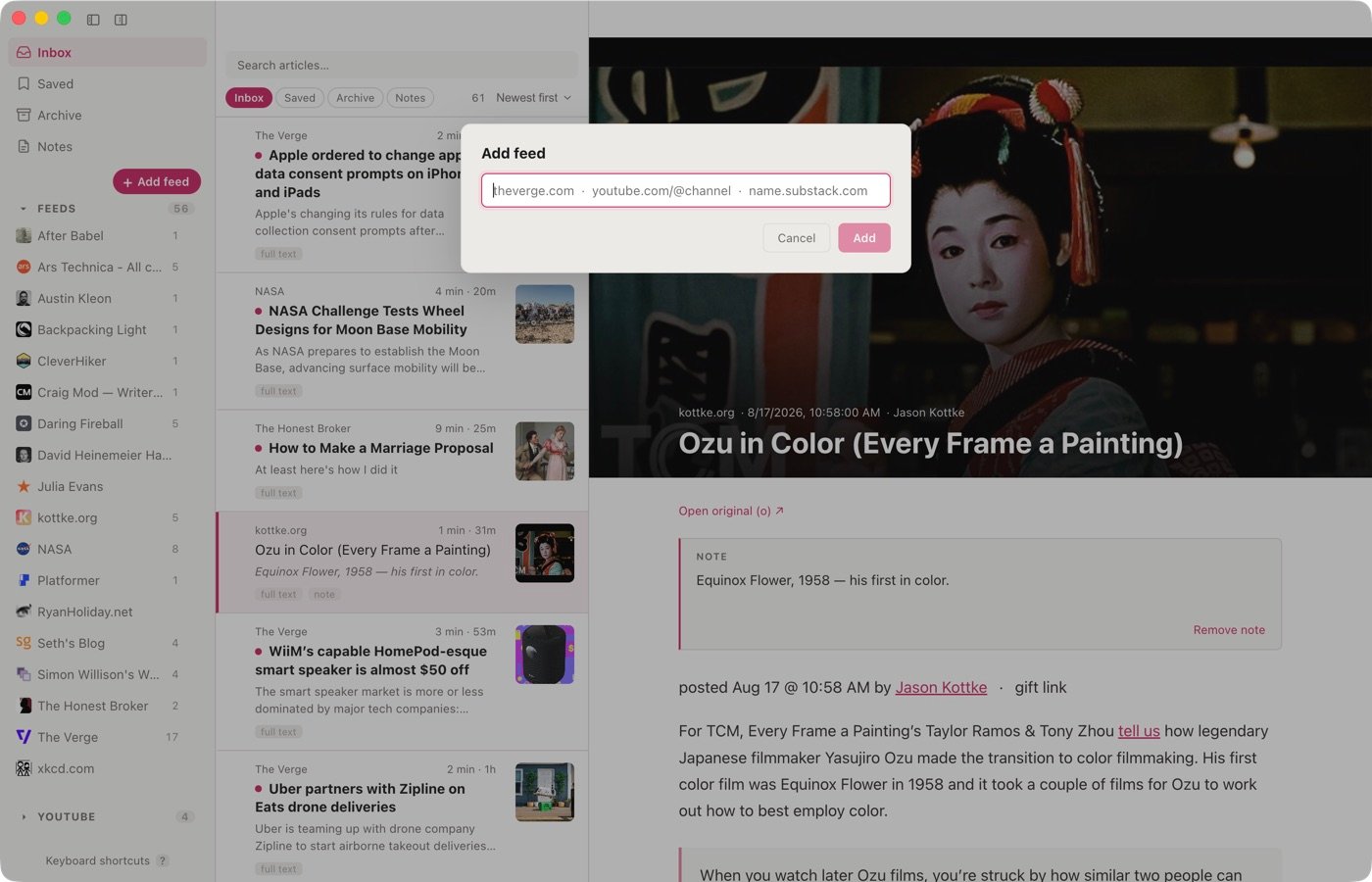
2. Type the site’s address. Feeds looks it up as you type. When it finds something, it shows the site’s name, the feed address it resolved to, and what kind of feed it is.
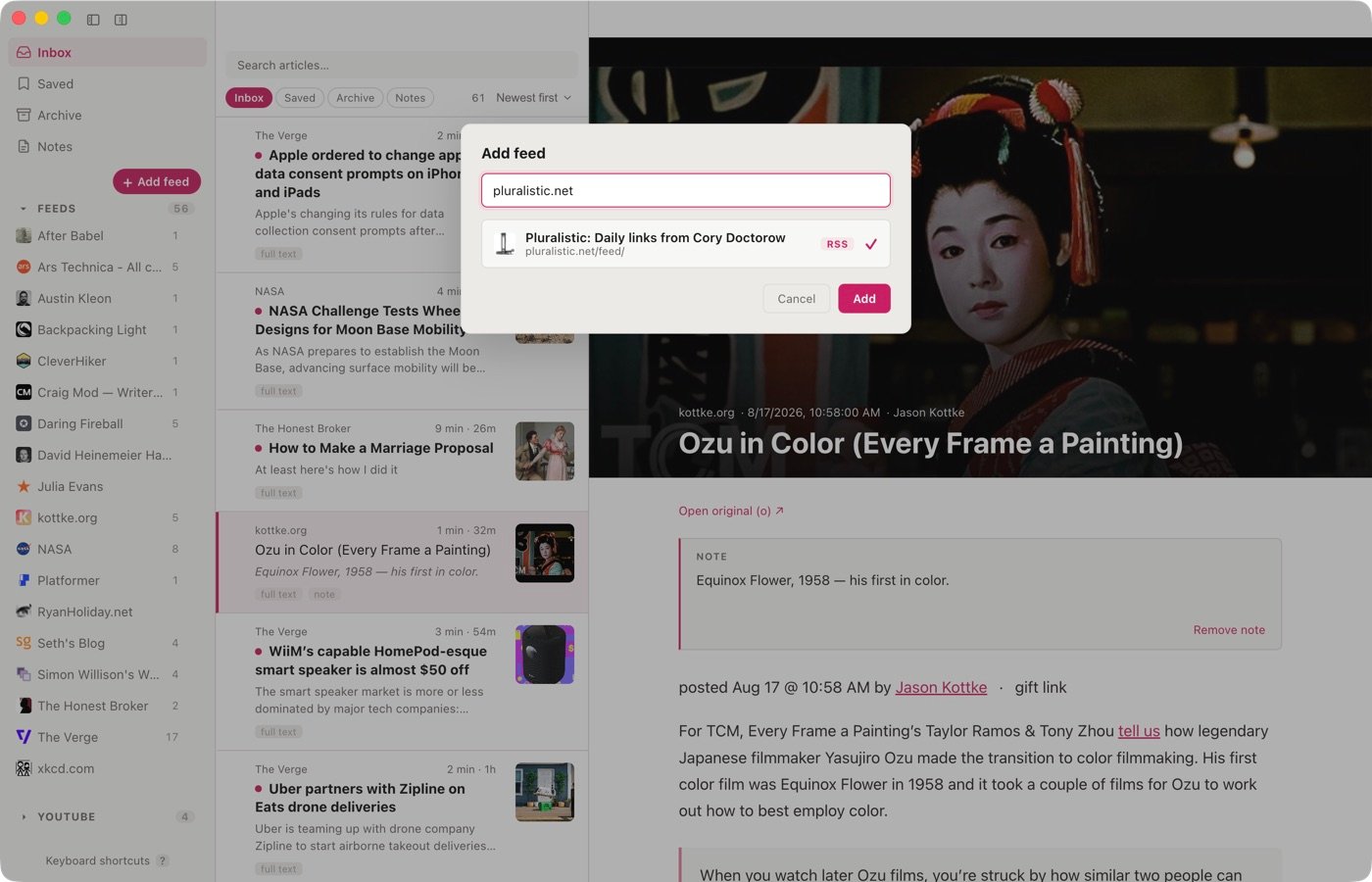
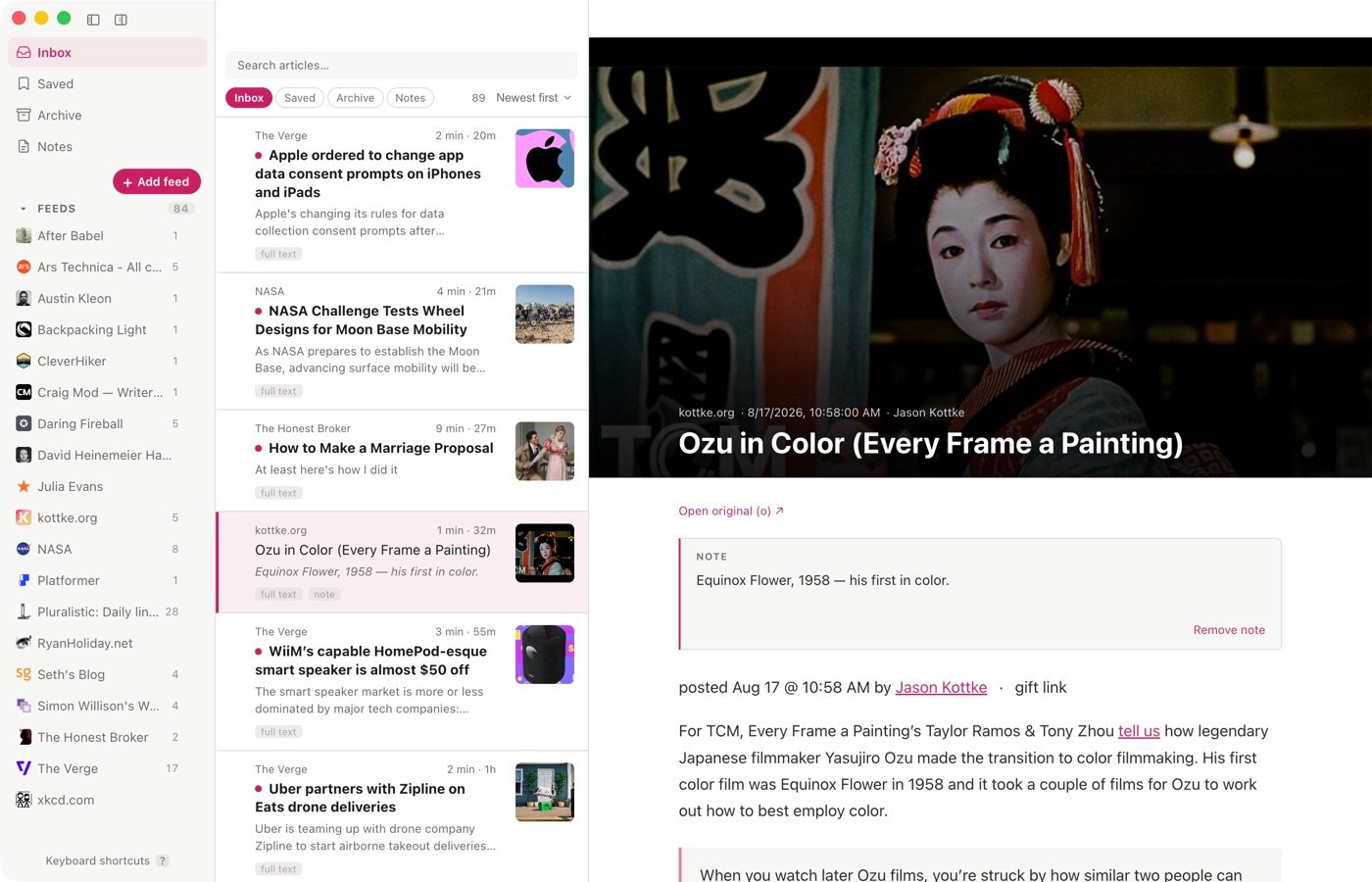
3. Add it. Press ⏎, or click Add. The feed appears in the sidebar and its articles arrive in the Inbox.
If nothing is found, Feeds says so.
What you can subscribe to
Feeds reads RSS and Atom. That includes Substack, YouTube, Reddit, Mastodon, Bluesky, and most blogs and news sites, whether or not they advertise a feed.
Sources. Some platforms get their own heading in the sidebar and smarter handling of their addresses. YouTube and Substack are always on; Reddit and open social (Mastodon and Bluesky) can be switched off under Settings → Feeds. Any RSS or Atom feed works either way — turning a source off only removes the heading and the address shortcuts, and the Add screen says so.
Bluesky publishes a feed for every profile.
Other ways in
From your browser. The Feeds button subscribes to the site you’re on in one click. See The Feeds button for your browser.
From another reader. Subscriptions travel as OPML. Import subscriptions and Export subscriptions are in the action bar. An import can be stopped part-way, and names the feed it’s working on.
From a pack. A pack is a shared set of feeds; importing one subscribes to everything in it. See Packs.
When a feed goes quiet
A source is not marked in the sidebar when a refresh fails; most failures are momentary. Hover a feed and its tooltip says why, when something is genuinely wrong.
The action bar
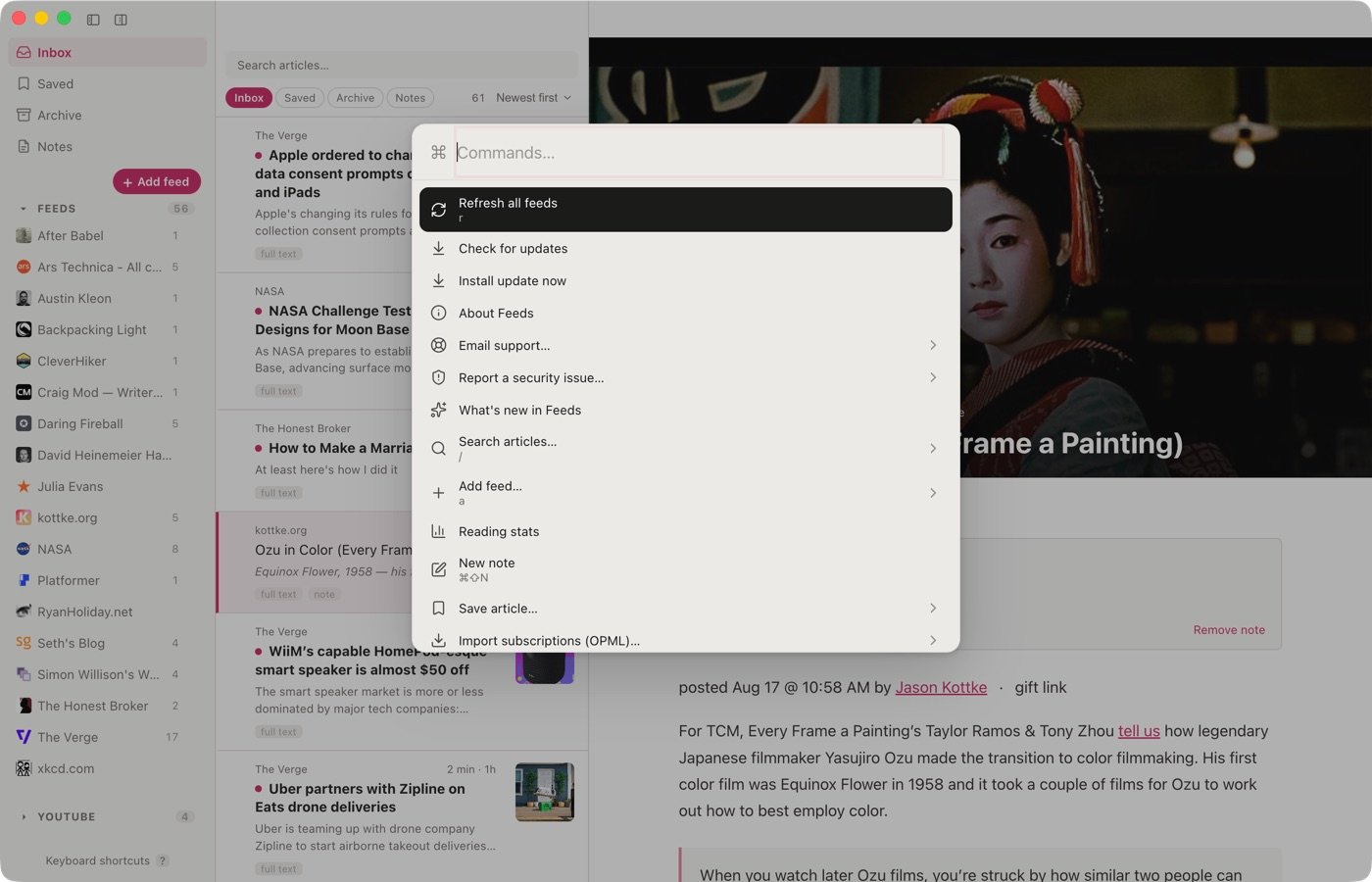
Press ⌘K to reach every feed, tag, and command.
Press ⌘K. Every feed, tag and command is there — switching themes, hiding a column, pinning a feed, removing a feed, creating or importing a pack, saving an article by address, importing and exporting subscriptions, opening any Settings tab, checking for updates, installing one, emailing support, opening the release notes, reporting a security issue, and About Feeds.
Each command carries an icon, with its shortcut or a short description under the label.
Typing #word toggles that tag on the article you’re on. Typing part of a feed’s name jumps to it.
The Feeds button for your browser
Save a page, or subscribe to a site, without leaving the browser.
Click the Feeds button on any page and choose: save the article to read later, or subscribe to the site. It works in Chrome, Brave, Edge and Arc.
Setting it up
The button is on the Chrome Web Store as Save to Feeds:
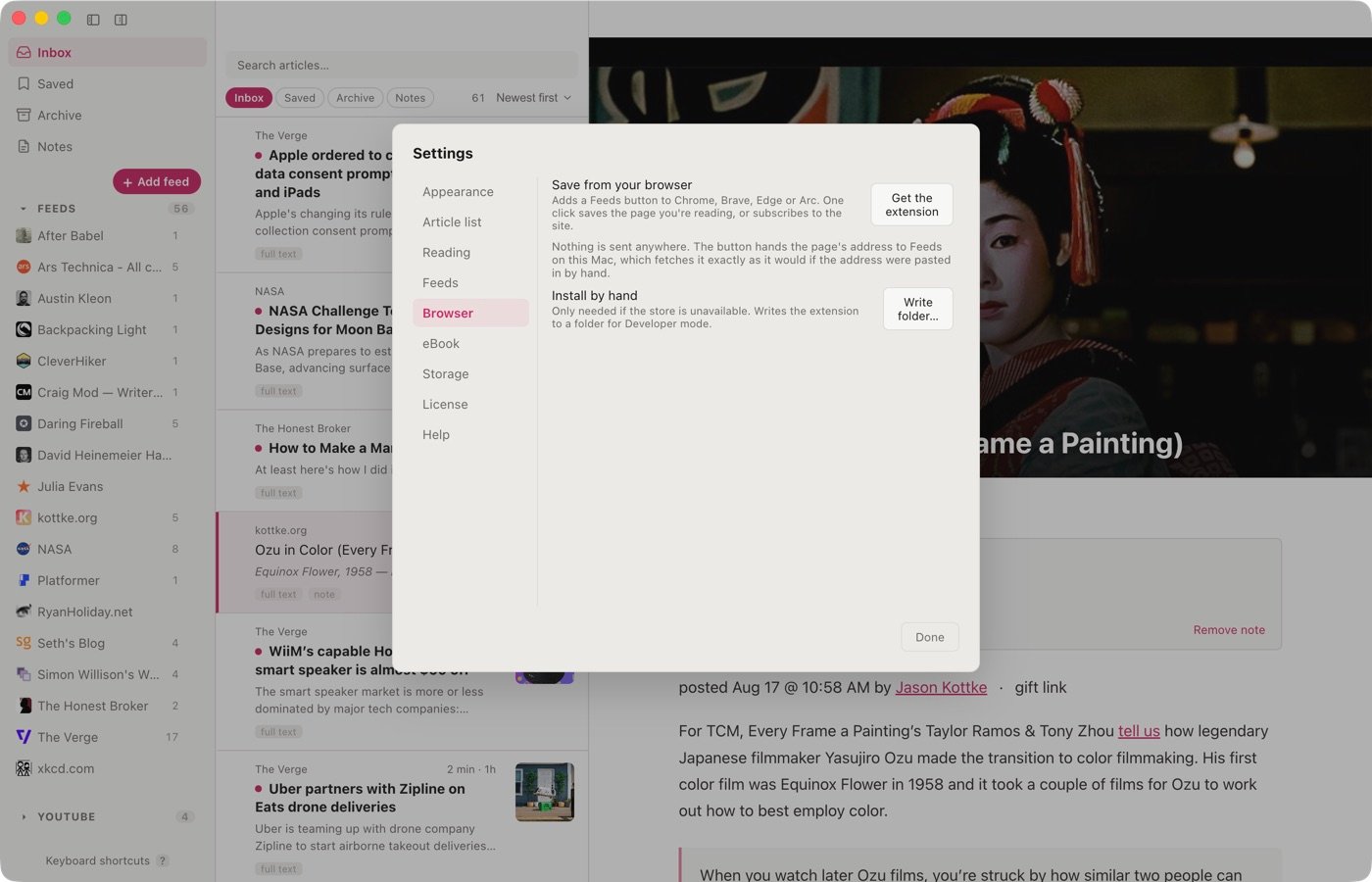
- Open Settings → Browser in Feeds and click Get the extension — or go straight to the listing: https://chromewebstore.google.com/detail/save-to-feeds/bihfjcpmfkgdiiccfjljbkhiofkmnlgc
- Click Add to Chrome.
The same listing works in Chrome, Brave, Edge, Arc and any other Chromium browser.
The first time you use the button, Chrome asks whether to let the page open Feeds. Tick Always allow and it stops asking.
Already installed from an earlier version. Versions before 1.13.0 were installed by hand through Developer mode. Remove that one on chrome://extensions and install from the store instead — it updates itself from then on, and survives a browser reset.
If the store is unavailable
Settings → Browser → Write folder… writes the extension to a folder, which you can load with Developer mode → Load unpacked on chrome://extensions. An extension installed this way does not update itself.
What it can see
Nothing is sent anywhere. The button hands the page’s address to Feeds on this Mac, which fetches it exactly as it would if the address were pasted in by hand.
It can see the address of the tab you press it on, and nothing else — no browsing history, no other tabs. Subscribing opens the Add screen with the site filled in, so nothing is ever added without being seen.
Before you buy
What the trial covers, how the license arrives, and where your library actually lives.
How does the download arrive?
A confirmation email arrives with the download button in it. One click confirms the address and starts the download. The email address is only used to send the link and the occasional release note; the app itself has nothing to sign into.
What happens when the trial ends?
Feeds stops opening until you buy a license. Your library is untouched; buying at any point picks up where you left off.
How does the license reach me?
By email, as a key you paste into Settings → License. One purchase covers five Macs.
Is my library trapped in the app?
No. Your subscriptions export as OPML, and the library itself is an ordinary SQLite file in your Application Support folder.
Does it work without an internet connection?
Yes, for everything already synced. Articles are fetched and stored in full when the feed refreshes, so opening one never needs the network.
Getting started Reading Organizing Sharing Reference Account
The help docs and changelog content is AI-written.