 Feeds
Feeds
Sharing
Export, email, print
Send an article, or a whole view, to EPUB, email, or paper.
⌘Eorx— export the article to EPUB⇧⌘E— export everything in the current view to EPUBm— email the article⌘P— print it
Exporting a whole view is how you get a set of articles onto an e-reader in one file. A book with more than one article opens on a contents page — every entry a link, with the source under the title — and each article ends with “Return to contents”. A single-article export doesn’t get one.
Copy an article’s link with Copy article link in the action bar, or Article → Copy Link.
The end of an article carries the same actions: the macOS share sheet, an email handoff, and the link. Nothing is sent by Feeds itself.
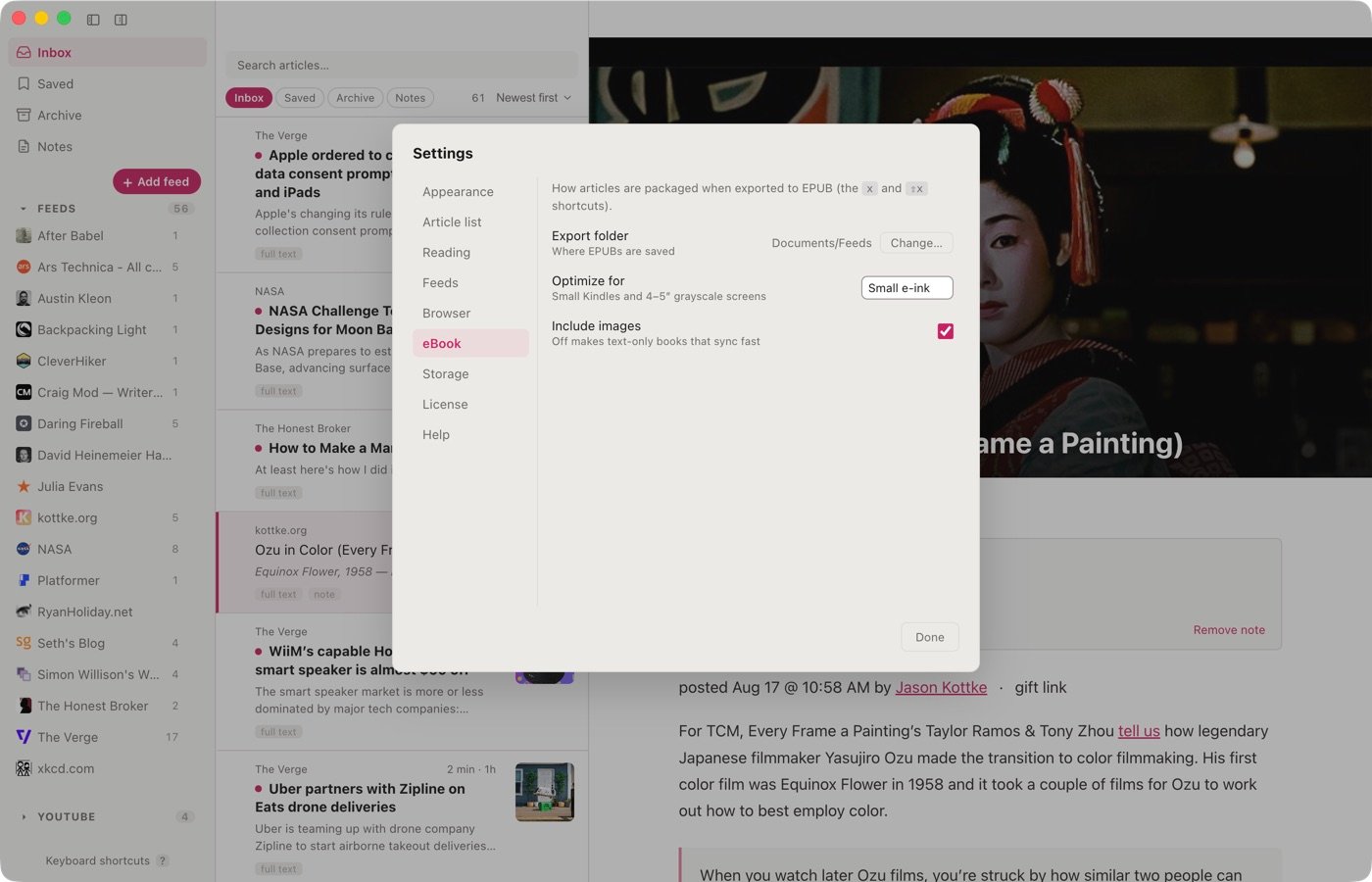
Export settings are under Settings → eBook: which folder books are saved to, a preset per reader (e-ink, e-reader, sharper, small, or custom image size and quality), and whether to include images. Text-only books sync fast.
A featured image shown above an article in the reading pane is left out of printing, PDF and EPUB.
Packs
A named set of feeds, shared by code.
Feeds offers starter packs on first launch, and See all packs shows them as a grid any time. Three are bundled: Digital Minimalism, The Great Outdoors, and Writers with Ideas.
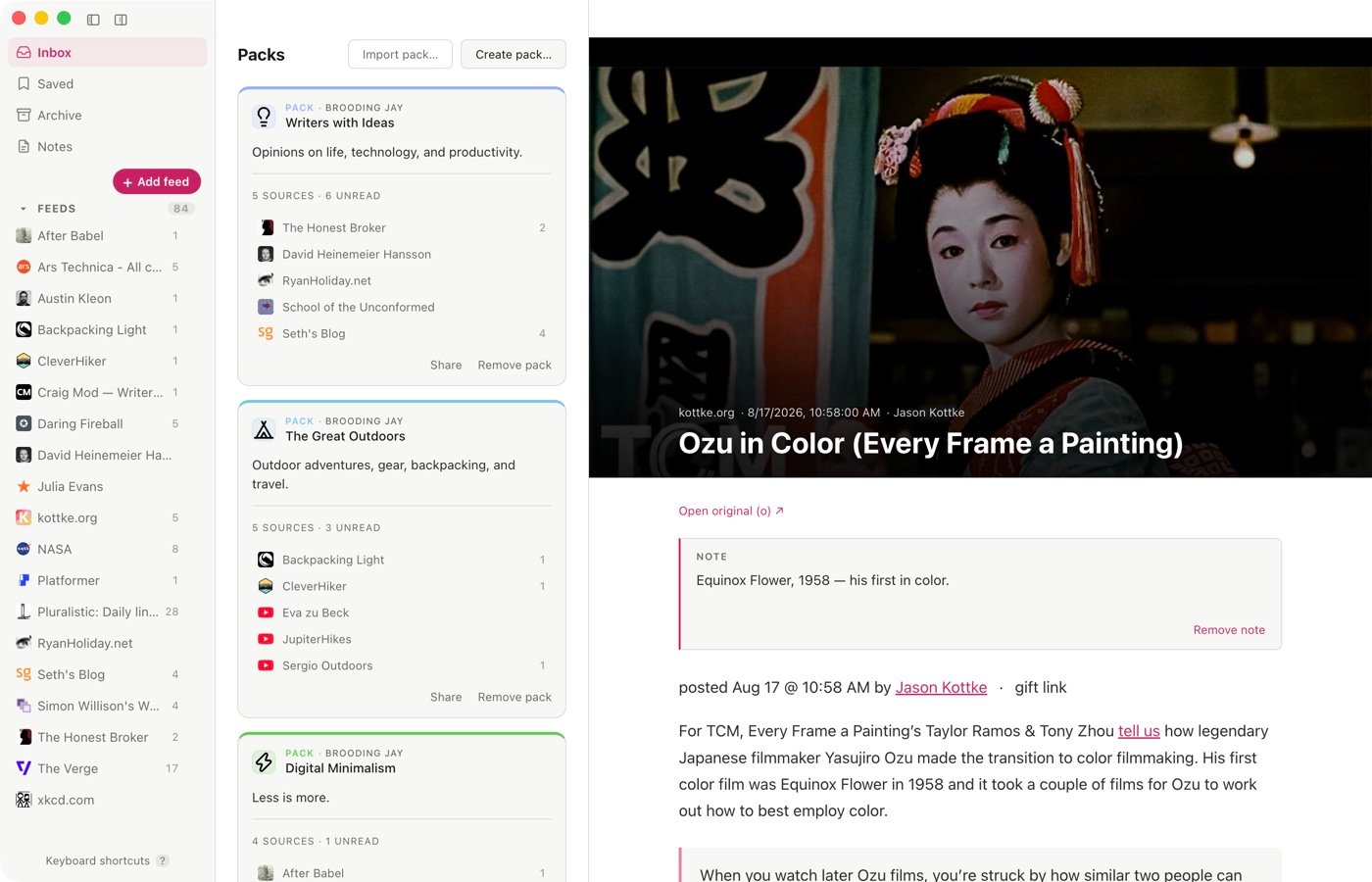
Making one. Create pack… in the action bar. A pack carries a name, a description, and a tile — either an emoji or one of sixty-six monochrome line icons, from the same picker.
Changing one. The Edit dialog lists a pack’s feeds with a remove control, and a picker for adding more from your subscriptions — up to five, with the count shown. Changes apply on Save; Cancel leaves the pack as it was.
Sharing one. Sharing a pack gives you a code and a QR image to pass along. Import pack… takes a code and subscribes to everything in it.
A personal feed address can carry a private token in it, and a pack carries feed addresses as they are. Feeds checks before sharing, names any feed that would publish a private address, and declines until it is removed.
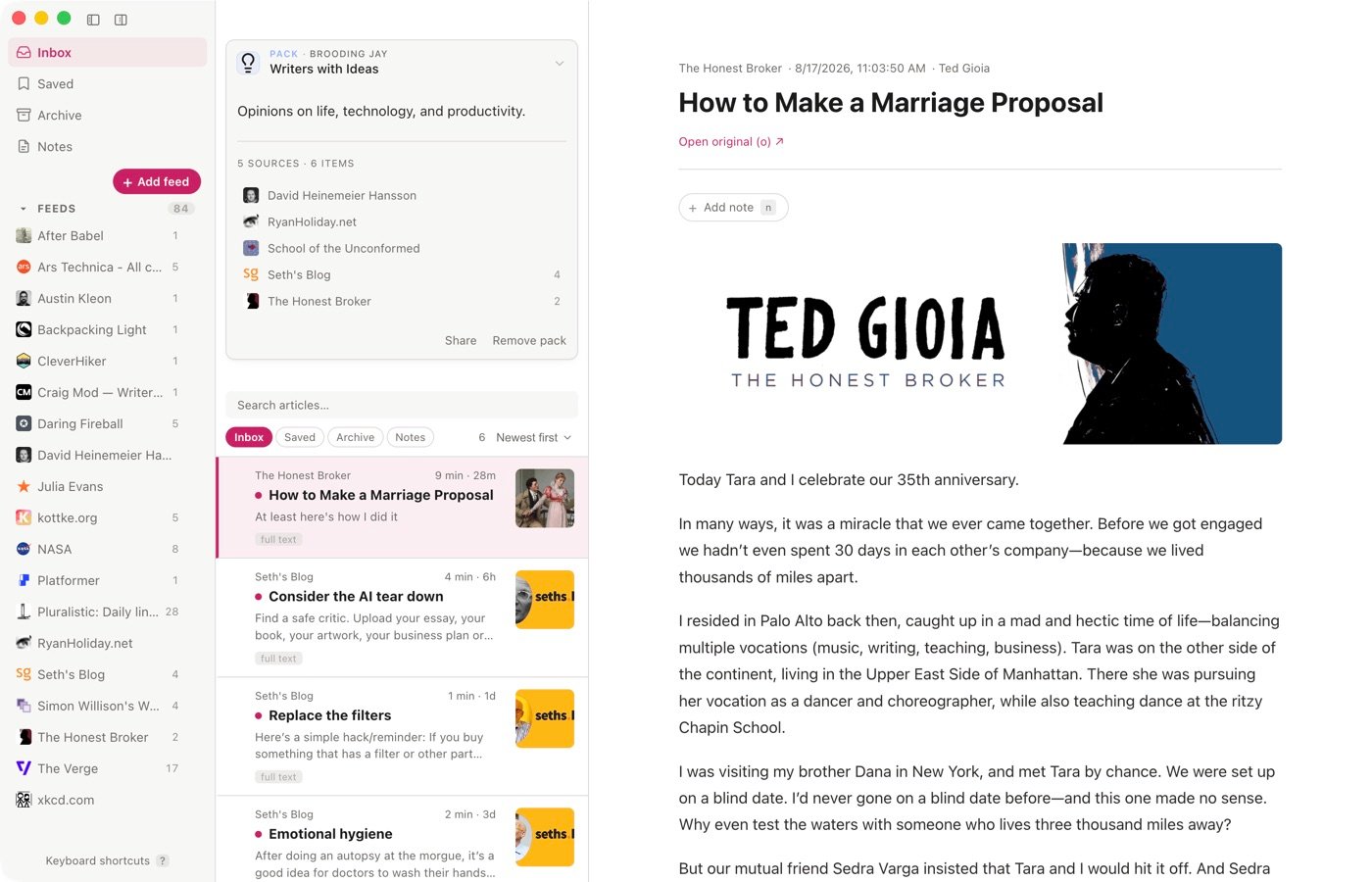
How a pack announces itself above its articles — a card or a compact line — is under Settings → Appearance.
Getting started Reading Organizing Sharing Reference Account
The help docs and changelog content is AI-written.